mLSTransit by CodeM
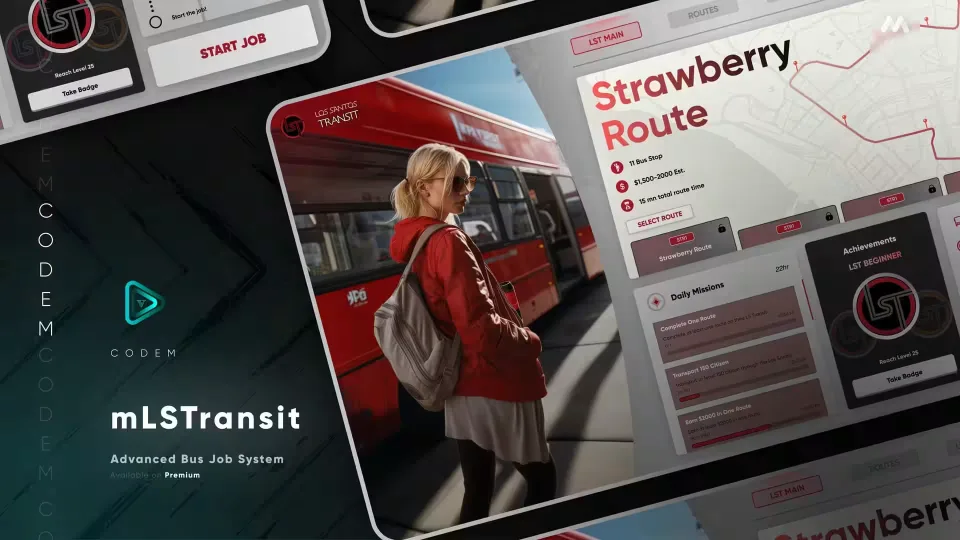
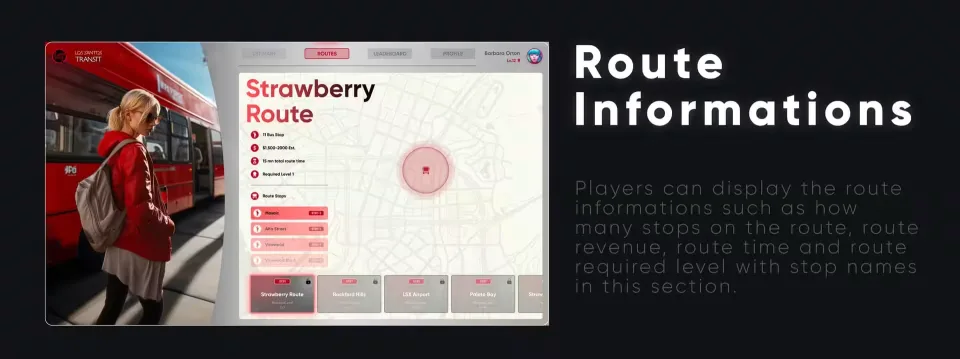
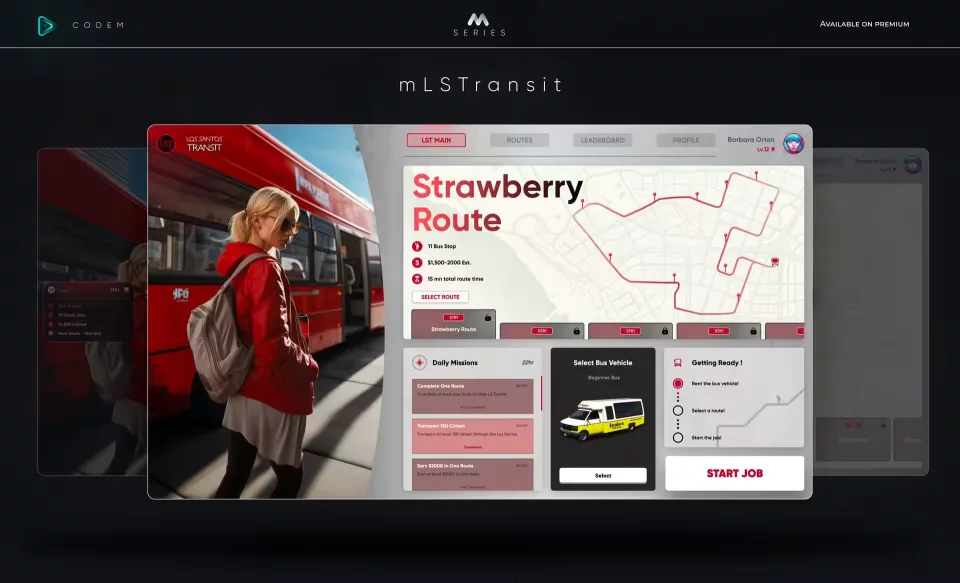
A bus job built around its own transit company, LSTransit. Instead of a bare marker and a route, drivers get a full company UI covering route selection, daily missions, a city leaderboard and a live panel while they drive.
Starting a Shift
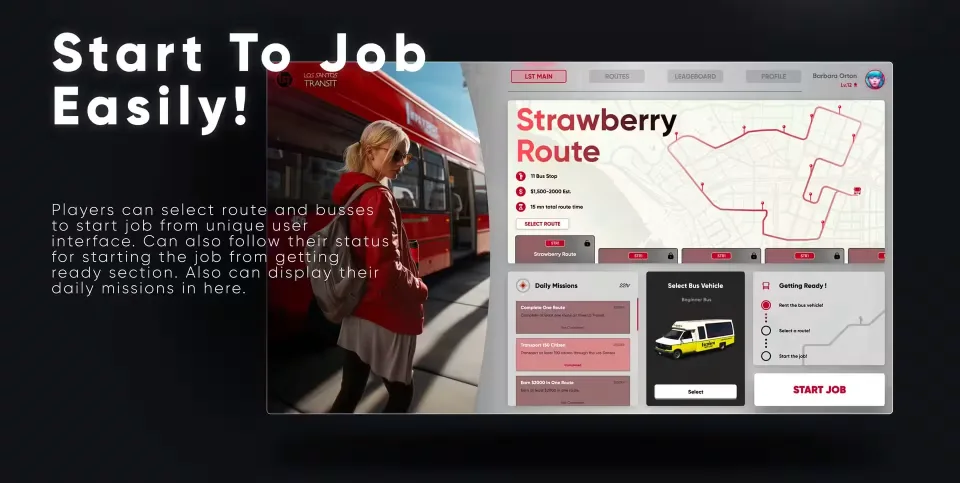
Drivers pick their route and their bus from the LSTransit interface, then watch their status in the getting ready section before pulling out of the depot. Daily missions sit in the same screen, so players see what the day pays before they commit to a route.
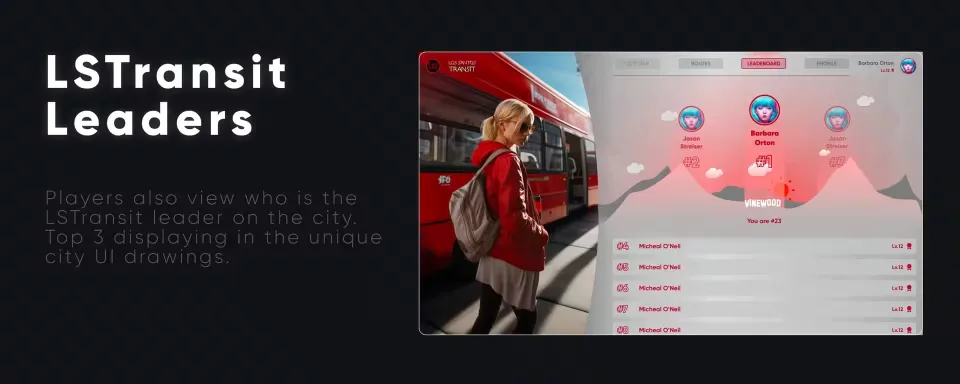
City Leaderboard
The city has an LSTransit leader, and everyone can see who it is. The top 3 drivers are displayed in the city UI drawings, which gives regulars something to compete over beyond a single payout.
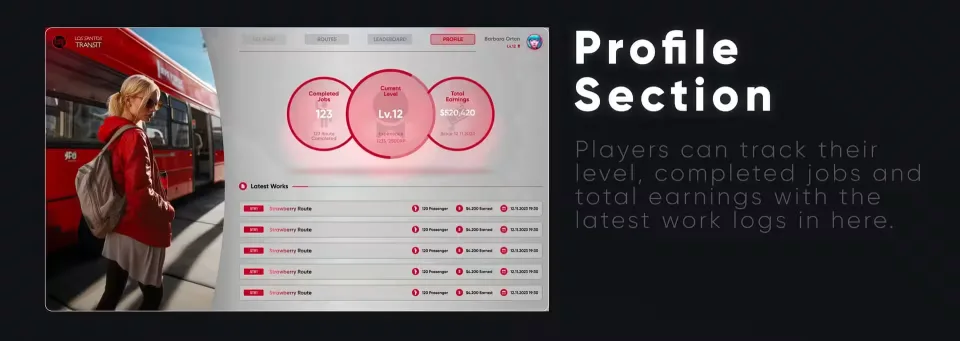
Driver Profile
Each driver has a profile tracking their level, completed jobs and total earnings, with the latest work logs listed underneath. Progress carries between shifts instead of resetting at the depot.
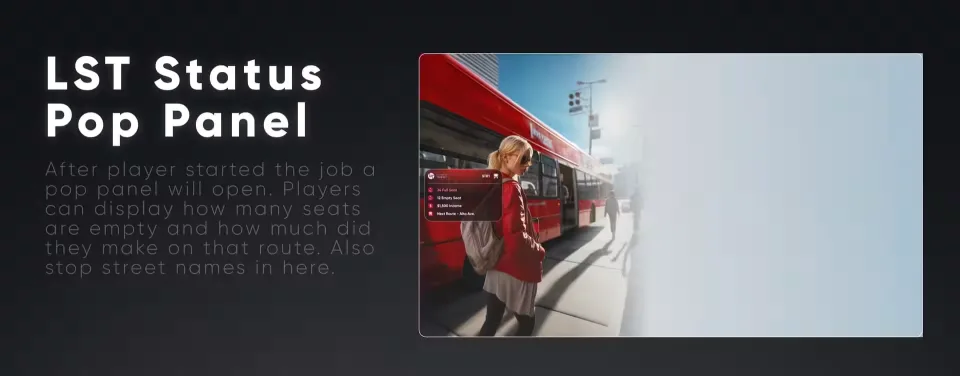
LST Pop Panel
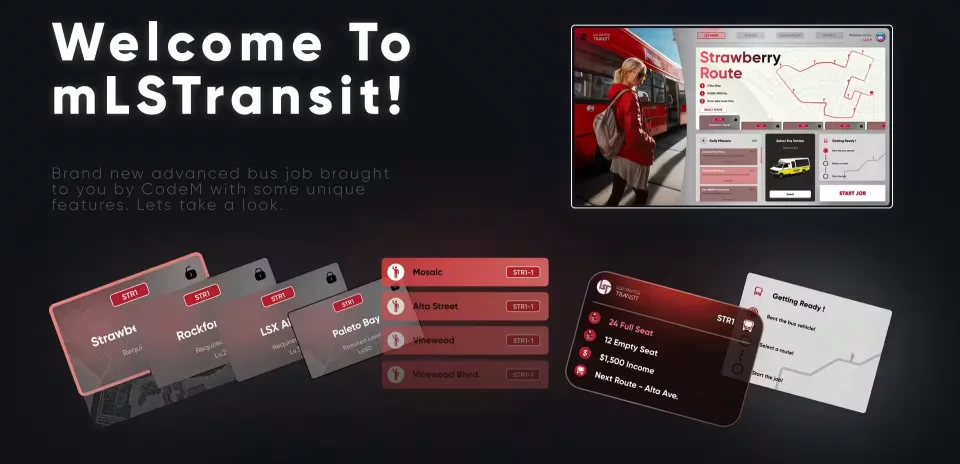
Once the route starts, a pop panel opens on screen. It shows how many seats are still empty, how much the driver has earned on the current route, and the street names of the upcoming stops, so nobody is guessing where the next pickup is.
Product information
Compatibility, delivery and setup
Check these listing details against your server before checkout. The documentation supplied with the download is the source of truth for exact dependencies, file names and configuration.
Compatibility
- Resource type
- FiveM script
- Category
- CodeM
- Creator
- Not listed
Order details
- Price
- $10.00
- Delivery
- Unique download link sent by email after checkout
- Sold by
- CFX Tebex Store Official
- Updates
- Lifetime updates included
Installation checklist
Start with the files and readme included with this product.
-
Match the requirements
This listing names esx, qbcore, qbox support. Check the description and readme for required inventory, target, library, database or map resources.
-
Keep the supplied names and order
Do not guess or rename the resource folder. Use the dependency order, config values, SQL and item definitions supplied in the download when they are present.
-
Start it after its dependencies
Upload the folder to
resources/, then addensure <download-folder>toserver.cfgusing the exact downloaded folder name. -
Test before going live
Start it on a development server, check the console for missing dependencies, then test every action described on this page with the integrations used by your live server.
Write a review
Reviews are moderated before appearing. Purchased the product? Your review gets a VERIFIED badge automatically.


