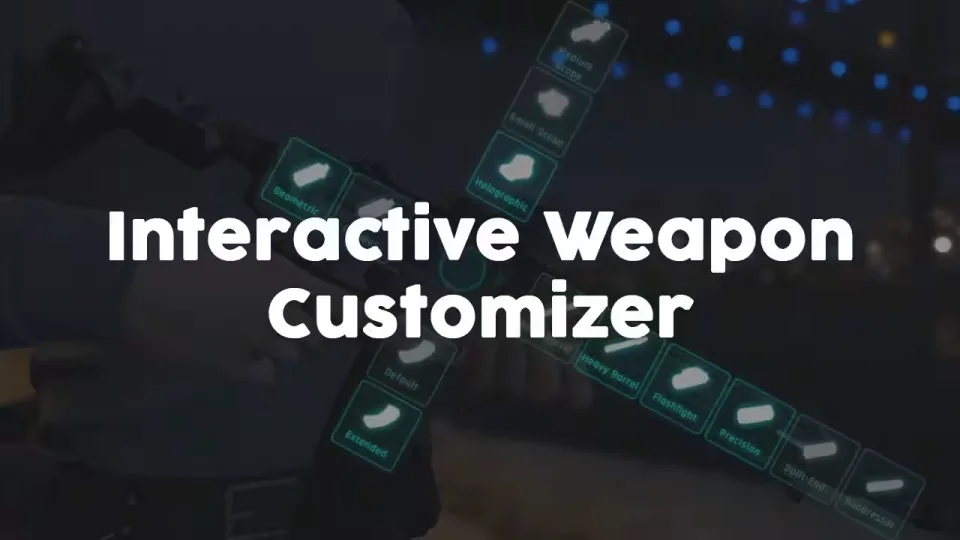
Weapon Attachment UI
Change your loadout right in the heat of the moment. Inspired by the Battlefield 2042 customization screen, this interactive overlay lets players pull up any weapon and swap its attachments on the spot, no workbench, no menu diving. If you run a combat-heavy or roleplay server, it is a small addition that players touch constantly.
Works With Your Inventory
The script runs standalone with zero requirements, and it also ships configured and tested for ox, esx and qb inventory systems. Attached components are saved through the respective inventory, so weapons keep their setup across your existing server without extra wiring.
Configuration
- Every default GTA 5 weapon and its components come preconfigured out of the box.
- Addon weapons can be added and configured the same way.
- Set optional item requirements or job restrictions per attachment, so a suppressor can cost an item or stay locked to a job.
- Animations, overlay images, labels, sound effects, component locations and much more are all configurable.
Performance
Resmon: 0.00ms idle, 0.01ms while customizing.
Product information
Compatibility, delivery and setup
Check these listing details against your server before checkout. The documentation supplied with the download is the source of truth for exact dependencies, file names and configuration.
Compatibility
- Resource type
- FiveM script
- Category
- ESX Scripts
- Creator
- Not listed
Order details
- Price
- $9.00
- Delivery
- Unique download link sent by email after checkout
- Sold by
- CFX Tebex Store Official
- Updates
- Lifetime updates included
Installation checklist
Start with the files and readme included with this product.
-
Match the requirements
This listing names esx, qbcore, qbox support. Check the description and readme for required inventory, target, library, database or map resources.
-
Keep the supplied names and order
Do not guess or rename the resource folder. Use the dependency order, config values, SQL and item definitions supplied in the download when they are present.
-
Start it after its dependencies
Upload the folder to
resources/, then addensure <download-folder>toserver.cfgusing the exact downloaded folder name. -
Test before going live
Start it on a development server, check the console for missing dependencies, then test every action described on this page with the integrations used by your live server.
Write a review
Reviews are moderated before appearing. Purchased the product? Your review gets a VERIFIED badge automatically.